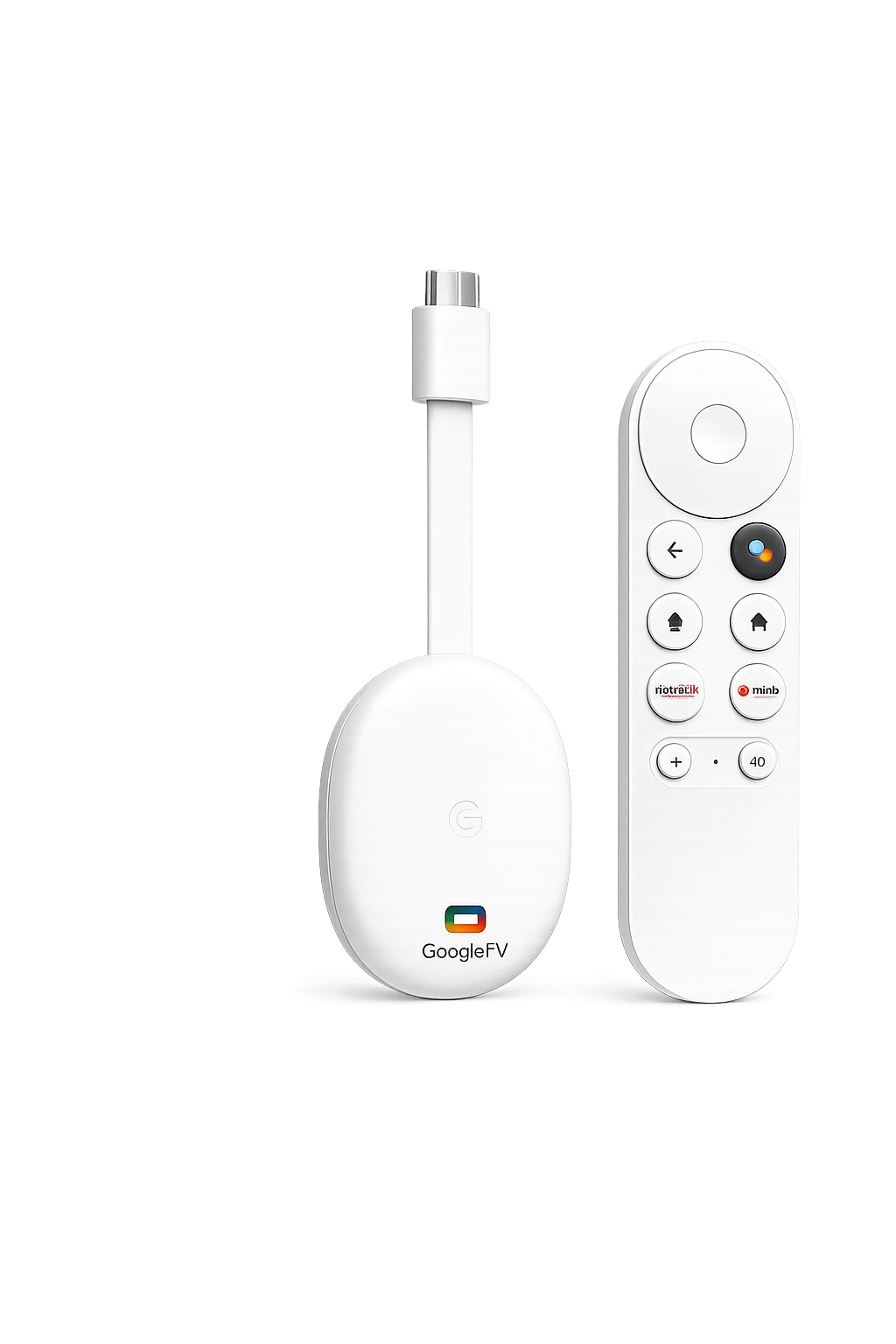
What is Kodi Google TV?
Kodi Google TV is the Google TV version of Kodi, a free and open-source media center designed for large screens and remote controls. It can organize videos, music, photos, podcasts, local-network files, and compatible internet sources through its library and add-on system.
Kodi does not include television channels, movies, subscriptions, or commercial streaming packages. It is a media center only. You must add media that you own, control, or are legally authorized to access. A clean Kodi Google TV installation is usually faster, easier to maintain, and safer than an overloaded build.
How to install Kodi Google TV
The easiest installation method is through Google Play. The steps below take you from a fresh Google TV home screen to your first Kodi launch.
Open Apps
From the Google TV home screen, open the Apps section or launch the Google Play Store.
Search for Kodi
Search for “Kodi” and verify that the official app package is published under the Kodi name.
Install the app
Select Install and wait until the download and installation process is complete.
Open Kodi
Launch Kodi Google TV and allow the permissions needed for media access when prompted.
Configure sources
Add your own legal files, local-network folders, media server, or authorized PVR source.
Best ways to use Kodi Google TV
USB drives and device storage
Add folders containing videos, music, and photos that you own. Kodi can scan compatible files and build a visual media library.
- Personal video collections
- Home movies and photos
- Music files and playlists
NAS and shared folders
Connect Kodi Google TV to media stored on your local network through a compatible sharing method supported by your setup.
- Centralized household library
- Less storage used on Google TV
- Access from multiple devices
Personal media platforms
Use compatible official or community add-ons to connect to a personal media server you operate or are authorized to access.
- Organized metadata
- Watch-history synchronization
- Multi-device access
PVR IPTV Simple Client
For authorized live-TV sources, Kodi can use the official PVR IPTV Simple Client add-on with an M3U playlist and optional XMLTV guide.
- Live channel list
- Electronic program guide
- Remote-friendly navigation
Configure PVR IPTV Simple Client on Kodi Google TV
PVR IPTV Simple Client is designed to connect Kodi to a user-supplied M3U playlist and optional XMLTV guide. It does not provide channels or subscriptions.
Install the client
Go to Add-ons, choose Install from repository, open PVR clients, and select PVR IPTV Simple Client.
Step 1Add M3U location
Open Configure and enter the complete M3U URL or local playlist path supplied by your authorized source.
Step 2Add guide data
Enter the XMLTV or EPG address when one is available, then save the configuration.
Step 3Restart or refresh
Restart Kodi or refresh PVR data so channels and guide information can load completely.
Step 4Open the TV menu
Select TV from the Kodi home screen and confirm that your authorized channels and guide are visible.
ReadyBest Kodi Google TV settings for smooth playback
Use a stable network
Ethernet is ideal when available. Otherwise, use a strong 5 GHz Wi-Fi signal and keep the Google TV device near the router.
Keep free storage
Remove unused apps and clear unnecessary cache files so Kodi Google TV has enough working space.
Match display refresh rate
On compatible devices, test Kodi display and playback options that match the television refresh rate to supported video content.
Use hardware acceleration
Leave supported hardware acceleration enabled unless a specific file produces visual glitches or decoding problems.
Choose the correct audio output
Configure speakers, soundbar, or AV receiver settings correctly before enabling passthrough options.
Refresh large libraries carefully
Allow scans and artwork downloads to finish before starting high-bitrate playback on lower-powered devices.
Use Kodi add-ons responsibly
Kodi supports an add-on ecosystem, but not every third-party add-on is trustworthy or lawful. Prefer the official Kodi repository, review permissions, and avoid unknown “fully loaded” builds.
Kodi Google TV does not make unauthorized streams legal. Only connect media and services you have the right to use, and follow the laws and service terms that apply in your location.
Kodi Google TV vs dedicated IPTV players
Kodi is a complete media center, while dedicated players such as OTT Navigator and TiviMate focus more heavily on live-TV workflows.
Kodi
Best for combining personal videos, music, photos, network storage, add-ons, and authorized PVR sources.
- Wide media-library support
- Flexible interface and add-ons
- Local and network playback
OTT Navigator
Best for users who mainly want M3U or Xtream-based Live TV, Movies, and Series organization.
- Fast provider setup
- Live and VOD categories
- Simple daily navigation
TiviMate
Best for a television-guide experience with advanced live-channel organization and remote control use.
- Strong EPG interface
- Detailed playlist controls
- Traditional TV layout
Fix common Kodi Google TV problems
Kodi will not install
Restart Google TV, verify free storage, update the operating system, and try the official Google Play listing again.
App closes unexpectedly
Clear the Kodi cache, disable a recently installed add-on, restart the device, and confirm that the current build supports your hardware.
Video keeps buffering
Test the network, reduce other household traffic, use Ethernet, and compare a local file to determine whether the issue is the source or connection.
No sound
Check the selected audio track, Google TV volume, television output, Kodi audio device, and passthrough compatibility.
PVR channels are missing
Verify the complete M3U location, refresh PVR data, check account authorization, and restart Kodi after saving the client settings.
EPG is empty
Confirm the XMLTV address, check time-zone settings, clear PVR guide data, and allow the guide import to complete.
Remote navigation feels slow
Use the default skin, remove heavy widgets, close background apps, and reduce oversized artwork or add-on activity.
Kodi Google TV FAQ
Is Kodi available on Google TV?
Yes. Kodi is available as an Android application, and the official Google Play listing supports compatible Android and Google TV devices.
Does Kodi include free TV channels?
No. Kodi is a media player and entertainment hub. It does not include channels, subscriptions, movies, or commercial streaming packages.
Can Kodi use an M3U playlist?
Yes. An authorized M3U playlist can be configured through a compatible PVR client such as PVR IPTV Simple Client.
Can I install Kodi from Google Play?
On compatible devices and in supported regions, the easiest method is installing the official Kodi app through Google Play.
Is Kodi Google TV free?
Kodi itself is free and open source. Separate media services, storage devices, servers, or authorized subscriptions may have their own costs.
Is Kodi legal in Canada?
Kodi is legitimate media-center software. Legality depends on the content, service, and add-ons you use, so only access media you are authorized to watch.
Should I install a fully loaded Kodi build?
A clean official installation is generally easier to secure and troubleshoot. Unknown builds can include unsupported, unreliable, or risky add-ons.
Verify Kodi information from official sources
Check the current app description on the official Kodi Google Play page, download information on the official Kodi Android page, and Android installation guidance on the official Kodi Wiki.
Test your Kodi Google TV setup
Confirm installation, navigation, local-media playback, legal PVR login, guide loading, audio output, subtitles, and network stability before relying on the setup every day.