IPTV Installation Guides Canada for Every Device
IPTV Installation Guides Canada gives you one complete IPTV setup hub for Firestick, Smart TV, Android TV, Samsung TV, LG TV, Apple TV, Windows, Mac, iPhone and iPad. Choose your device, install a compatible IPTV player, add Xtream Codes or an M3U playlist, configure EPG data and follow the correct step-by-step IPTV installation path.
Secure activation • Device-specific guidance • WhatsApp setup support
What Do IPTV Installation Guides Canada Help You Set Up?
IPTV Installation Guides Canada helps viewers match their device with a compatible IPTV player, understand the login information required by that player and complete the first setup without mixing instructions from unrelated platforms.
A Firestick or Android TV usually offers a different app selection than Samsung webOS, LG webOS or Apple TV. Windows and Mac also use desktop-oriented players. Choosing the correct guide first reduces app compatibility problems, failed logins, missing EPG data and remote-control frustration.
This page acts as the central installation hub. Select your device below, open its dedicated guide, then return here for app comparisons, login methods, internet preparation and troubleshooting.
Choose Your IPTV Installation Guide for Firestick, Smart TV, Android TV, Apple TV, Windows or Mac
The IPTV Installation Guides Canada device library covers IPTV setup for Firestick, Samsung Smart TV, LG Smart TV, Android TV, Google TV, Apple TV, Windows, Mac and mobile devices, with app recommendations, login instructions and troubleshooting for each platform.
Firestick Setup
Choose a compatible player, install it and prepare the remote-friendly interface.
Open Firestick Guide → Android ecosystemAndroid TV Setup
Set up Android TV, Google TV, NVIDIA SHIELD or a compatible Android box.
Open Android TV Guide → Samsung Smart TVSamsung TV Setup
Use compatible Samsung applications and understand app activation requirements.
Open Samsung Guide → LG webOSLG TV Setup
Choose a webOS player and connect the supported login format correctly.
Open LG Guide → Apple ecosystemApple TV Setup
Configure Apple TV with a polished tvOS player and a television-friendly layout.
Open Apple TV Guide → Desktop viewingWindows Setup
Use a compatible Windows player and optimize playback for a monitor or television.
Open Windows Guide → macOSMac Setup
Choose a macOS-compatible player and organize channels, favourites and guide data.
Open Mac Guide →iPhone & iPad Setup
Install a compatible iOS player, enter your login and test playback over Wi-Fi.
Mobile setup support availableIPTV Setup Guide Canada: The Four-Step Installation Process
Across IPTV Installation Guides Canada, the interface changes from one device to another, but the underlying process remains consistent.
Identify the platform
Confirm whether the television runs Samsung Tizen, LG webOS, Android TV, Google TV or an external device. Do not assume every Smart TV supports the same apps.
Choose the player
Select an app that is available on your platform and supports the login format you received. The player is the interface; it is not the subscription itself.
Add the login
Enter the server address, username and password, or add the supported playlist URL. Copy each field carefully and avoid adding spaces before or after the credentials.
Load and test
Allow the player to load live channels, movies, series and EPG information. Test more than one category, add favourites and confirm that audio remains synchronized.
Best IPTV Apps for Firestick, Smart TV, Android TV, Apple TV, Windows & Mac
IPTV Installation Guides Canada recommends choosing the player that supports your platform, login method and preferred television controls. Use this overview before opening a detailed app guide.
TiviMate
Strong television-first interface for Firestick, Android TV and Google TV with favourites, groups and EPG tools.
Android TVIPTV Smarters Pro
Beginner-friendly login flow across several platforms with live TV, movies and series sections.
Multi-deviceIBO Player
Common choice for Samsung and LG televisions where the playlist is associated with the app’s device identifier.
Smart TVSmartOne IPTV
Smart TV player option with playlist management and remote-friendly navigation on supported televisions.
Smart TVIPTVX
Polished Apple-focused experience for Apple TV, iPhone, iPad and Mac users who prefer an Apple-style interface.
AppleVLC or Kodi
Flexible desktop and media-centre options, useful when the viewer needs direct playlist playback or advanced controls.
DesktopIPTV Login Setup: Xtream Codes, M3U Playlists & EPG
Login errors often happen because the setup method does not match the player. IPTV Installation Guides Canada covers the two common login paths below.
Xtream Codes login
This method normally uses three fields: a server or portal address, a username and a password. Many television-oriented players organize live TV, movies, series and EPG information automatically after a successful login.
- Enter the full server address exactly as provided.
- Check capitalization in the username and password.
- Remove accidental spaces from copied credentials.
- Use a simple profile name that you will recognize later.
M3U playlist
An M3U setup uses a playlist address that contains the account information. Some players also request a separate EPG address. This method can be useful on desktop players and applications that do not offer a dedicated Xtream Codes form.
- Paste the complete playlist URL without shortening it.
- Keep the URL private because it may contain login data.
- Add the EPG URL separately when the player requests it.
- Reload the playlist after correcting any account detail.
Prepare Your Device Before IPTV Installation
Before following IPTV Installation Guides Canada, a few minutes of preparation can prevent failed downloads, missing guide data, storage warnings and unstable playback later.
IPTV Installation Troubleshooting Canada
IPTV Installation Guides Canada separates installation, login, guide and network issues so you can start with the correct layer.
Login rejected
Re-enter the server, username and password manually. Check spaces, punctuation and expired credentials.
Review login methods →Channels do not load
Reload the playlist, restart the player and verify that the account works on the intended number of devices.
Open IPTV not working guide →Frequent buffering
Test Ethernet or 5 GHz Wi-Fi, stop background downloads and compare another channel before changing settings.
Open buffering guide →EPG is empty
Refresh the guide, confirm that EPG is enabled and allow the first database download to complete.
App feels slow
Clear temporary cache, reduce unnecessary categories and confirm that the device has free storage.
Need direct help
Send support the device model, player name and a screenshot of the error without sharing credentials publicly.
Contact setup support →How IPTV Installation Works on Modern Devices
IPTV Installation Guides Canada begins with one important distinction: IPTV installation does not usually mean installing a television service directly into the operating system. Instead, the viewer installs a compatible player application and then connects that player to valid account or playlist information. The player controls the interface, channel groups, favourites, EPG layout and playback settings. The account information supplies the available categories.
That distinction matters because two people using the same subscription can have very different experiences when they use different players. One application may provide a polished television guide and excellent remote controls, while another may be easier to install but offer fewer organization tools. IPTV Installation Guides Canada separates the device decision from the player decision so viewers can choose both deliberately.
Start by identifying the exact platform. “Smart TV” is not a single operating system. Samsung televisions commonly use Tizen, LG televisions use webOS, and many Sony, TCL, Hisense or streaming boxes use Android TV or Google TV. An Apple TV runs tvOS, while a Firestick uses Amazon’s Fire OS. The available app store and setup procedure depend on that platform.
Information you may need
- The device brand and model.
- The operating system or app store available on that device.
- The selected IPTV player name.
- A server address, username and password, or a playlist URL.
- An EPG URL when the player does not retrieve guide data automatically.
- A stable internet connection and enough device storage.
IPTV Installation Guide for Samsung and LG Smart TVs
The Smart TV section of IPTV Installation Guides Canada covers Samsung and LG televisions, which can run compatible player applications without an external box. The trade-off is that their app selection is more limited and can vary by television year, country and operating-system version. Search the television’s official app store before purchasing a separate player activation.
Many Smart TV players use a device-based activation model. The application displays a device identifier and key, and the viewer uses the developer’s official management page to associate a playlist with that device. Other applications offer a login form directly on the television. Follow the method shown by the specific app rather than entering credentials into an unrelated website.
Smart TV storage can be limited. Remove unused applications if the player closes unexpectedly or cannot update its EPG database. After adding the account, restart the application, wait for the first data load and save the most-used categories to favourites. The dedicated Samsung TV setup guide and LG TV setup guide explain platform-specific considerations.
IPTV Setup for Firestick, Android TV, Google TV & Apple TV
For external hardware, IPTV Installation Guides Canada covers Firestick, Android TV, Google TV and Apple TV devices, which usually offer a wider selection of maintained players than a television app store. They also make upgrades easier because the streaming hardware can be replaced without replacing the television.
Firestick and Android TV are popular among viewers who want television-focused players such as TiviMate or IPTV Smarters. Apple TV users often prioritize a polished tvOS experience and may prefer IPTVX or another Apple-compatible app. The best choice depends on the remote, storage, network connection and interface features that matter to the household.
Place the external device where it receives a strong Wi-Fi signal and keep it away from excessive heat. Connect its power adapter directly rather than relying on a weak television USB port when the manufacturer recommends external power. For major live events, open the player early and confirm that its guide and favourites have loaded.
Use the Firestick guide, Android TV guide or Apple TV guide for the correct platform workflow.
IPTV Setup Guide for Windows, Mac, iPhone & iPad
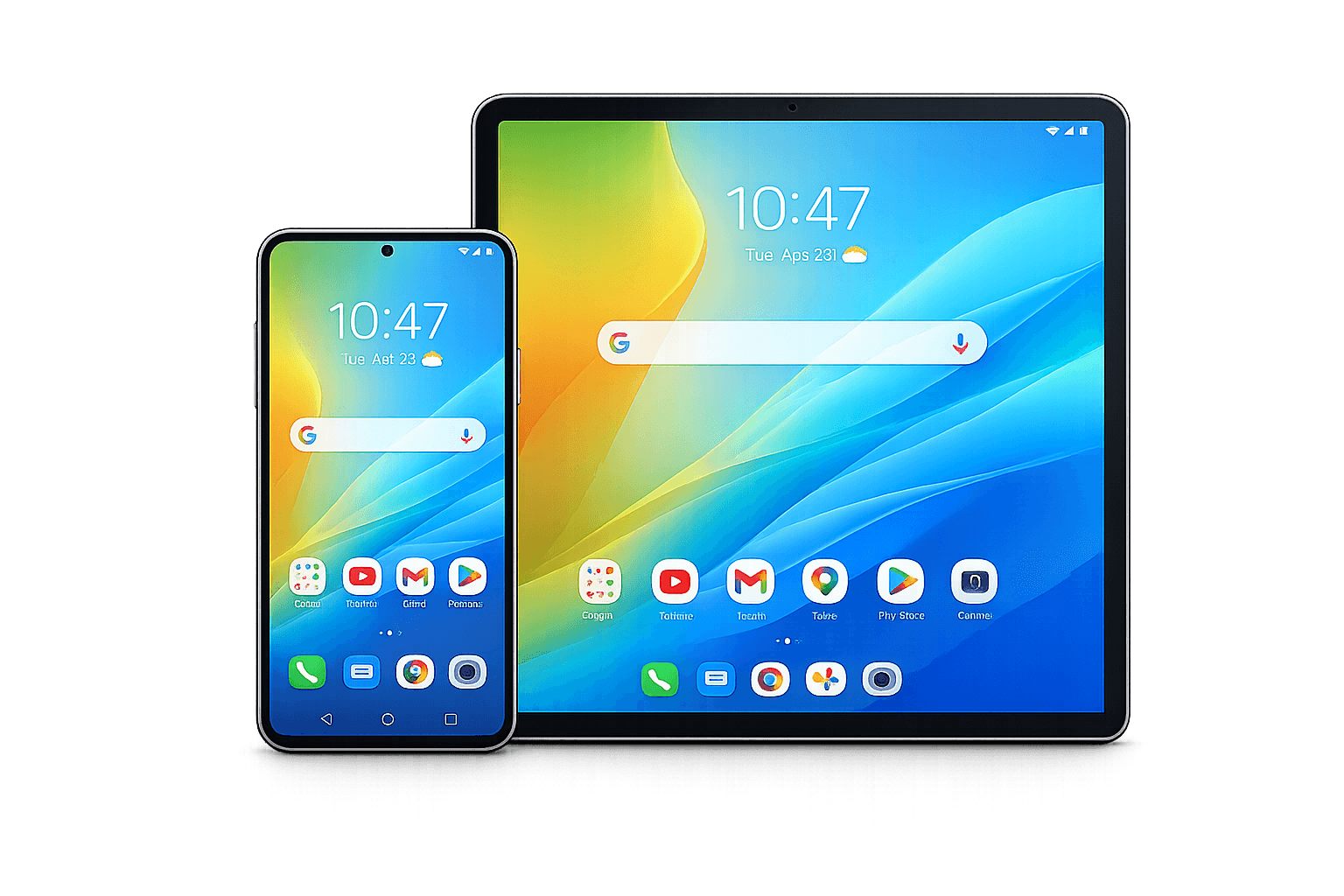
The desktop section of IPTV Installation Guides Canada uses Windows and Mac because typing long URLs and passwords is easier with a keyboard. Windows viewers can use a dedicated player, IPTV Smarters, VLC or Kodi depending on the login format and interface required. Mac users can choose a macOS-compatible player or an Apple ecosystem application that synchronizes settings.
Mobile setup follows the same basic sequence: install a compatible application, add the account, wait for the categories to load and test on Wi-Fi. Mobile data can be consumed quickly by high-resolution video, so check the cellular plan before watching long events away from home.
A computer or phone should not automatically become an additional simultaneous stream if the plan supports only one active connection. Close playback on one device before opening it on another unless the selected plan explicitly includes multiple connections.
See the verified Windows setup guide and Mac setup guide for desktop-specific player choices.
Protect IPTV Login Details During Installation
IPTV Installation Guides Canada recommends treating IPTV login details like any other private account credential. Do not publish screenshots that reveal the complete server address, username, password, playlist URL or device activation key. A playlist URL can contain account information directly inside the address.
Download applications from the official app store or the player developer’s official source. Avoid modified applications and unknown download pages. Keep the device operating system updated, use a secure home Wi-Fi password and remove old player profiles when a device is sold or given away.
IPTV is a delivery technology used by many legitimate services. Viewers remain responsible for using applications and content in accordance with local law, platform rules and provider terms.
What to Configure After IPTV Installation
After completing IPTV Installation Guides Canada, remember that a successful login is only the beginning. Organize the player so that it remains easy to use every day. Add the most important channels to favourites, hide categories that the household does not use and choose a guide time format that matches the local preference.
Review playback settings before changing them aggressively. Hardware decoding is often useful on television devices, but the best option can vary by player and hardware. Change one setting at a time so you can identify what improved or harmed playback.
Keep enough free storage for guide data and logos. Restart the streaming device periodically, especially after operating-system or player updates. When troubleshooting, test another channel and another category before assuming the entire account has failed.
After completing IPTV Installation Guides Canada, compare the best IPTV apps in Canada, review the available premium IPTV plans or request a free IPTV trial in Canada to test the setup on your own device.
IPTV Installation Guides Canada for Apps, Devices, Login & Troubleshooting
Use this keyword-focused IPTV setup hub to find the right installation guide, compatible player, login method and troubleshooting path for your device.
IPTV Setup Guide Canada
Follow a clear IPTV setup process from device preparation and app installation to login, EPG and playback testing.
IPTV on Firestick & Android TV
Install IPTV on Firestick, Android TV, Google TV, NVIDIA SHIELD and Android boxes with remote-friendly players.
IPTV for Samsung & LG Smart TV
Choose compatible Tizen and webOS IPTV apps, understand device activation and configure playlists correctly.
IPTV on Apple TV, iPhone & iPad
Use polished Apple-compatible IPTV apps for tvOS, iOS, iPadOS and macOS devices.
Xtream Codes & M3U Setup
Learn how to enter server details, usernames, passwords, playlist URLs and EPG information without login errors.
IPTV Installation Troubleshooting
Fix invalid login details, empty EPG data, channels not loading, buffering, slow apps and device compatibility issues.
Official IPTV App Installation Resources
IPTV Installation Guides Canada explains the IPTV-specific workflow. Use these official manufacturer resources to confirm how apps are installed and managed on each operating system.
IPTV Installation Guides Canada FAQ.
Answers about IPTV Installation Guides Canada, devices, player apps, credentials, EPG data, internet connections and setup support.
What do IPTV Installation Guides Canada cover?
IPTV Installation Guides Canada covers Firestick, Android TV, Samsung TV, LG TV, Apple TV, Windows, Mac and mobile setup, plus app selection, login methods, EPG configuration and common troubleshooting.
What is the easiest device for IPTV setup?
Firestick and Android TV are popular because they offer several television-friendly players. The easiest option still depends on the apps available in your region and the interface you prefer.
Do I need an IPTV player app?
Yes. A compatible player is normally required to display live channels, movies, series and guide information. The player application and the IPTV account are separate products.
Can I install IPTV directly on a Samsung or LG Smart TV?
Yes, when a compatible player is available in the television’s official app store. App availability can vary by model, operating-system version and region.
What is the difference between Xtream Codes and M3U?
Xtream Codes normally uses a server address, username and password. M3U uses a playlist URL and may require a separate EPG address. The correct method depends on the player.
Why does my IPTV login say invalid details?
Check the complete server address, capitalization, spaces and account status. Confirm that the login format matches the fields offered by the player.
Why is the EPG TV guide empty?
Refresh the guide, confirm that EPG is enabled, allow the first download to finish and verify whether the player requires a separate guide URL.
Is Ethernet better than Wi-Fi for IPTV setup?
Ethernet is generally more consistent. Strong 5 GHz Wi-Fi can also work well when the streaming device is close to the router and the network is not congested.
Can one account be used on several devices?
You can often install the player on several devices, but simultaneous playback depends on the number of connections included with the selected plan.
Does IPTVEZEN provide setup support?
Yes. IPTVEZEN support can help identify the device, recommend a compatible player and guide the viewer through the basic configuration process.
Complete Your IPTV Installation Guides Canada Setup
Use IPTV Installation Guides Canada to install the right IPTV app, configure your login, test device compatibility, fix common setup issues and get help before choosing a longer subscription.